How to use Wantsy
Step-by-step instructions for creating a wishlist, adding gifts, controlling access, and managing reservations.
Adding a Wish
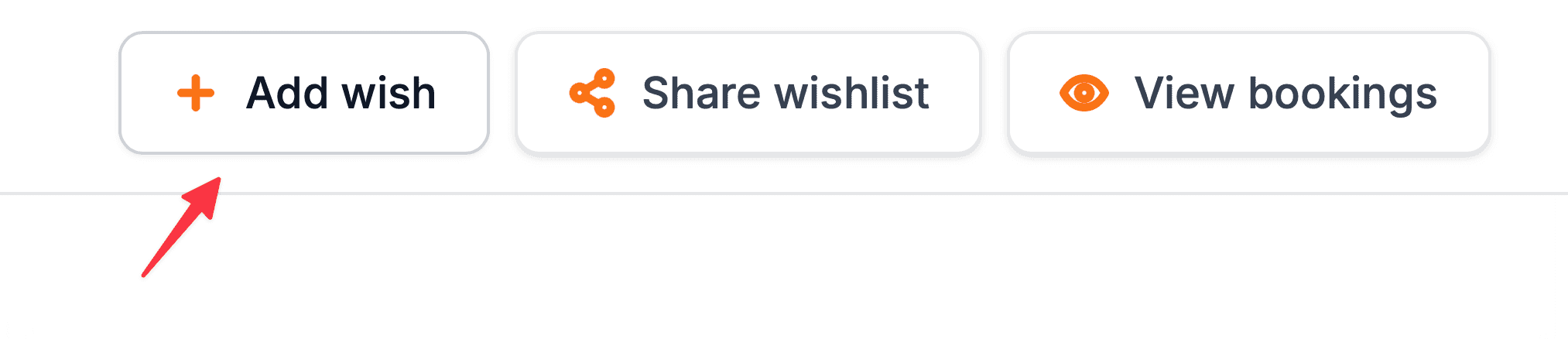
Navigate to your dashboard page and click the "Add Wish" button to create a new wish item.
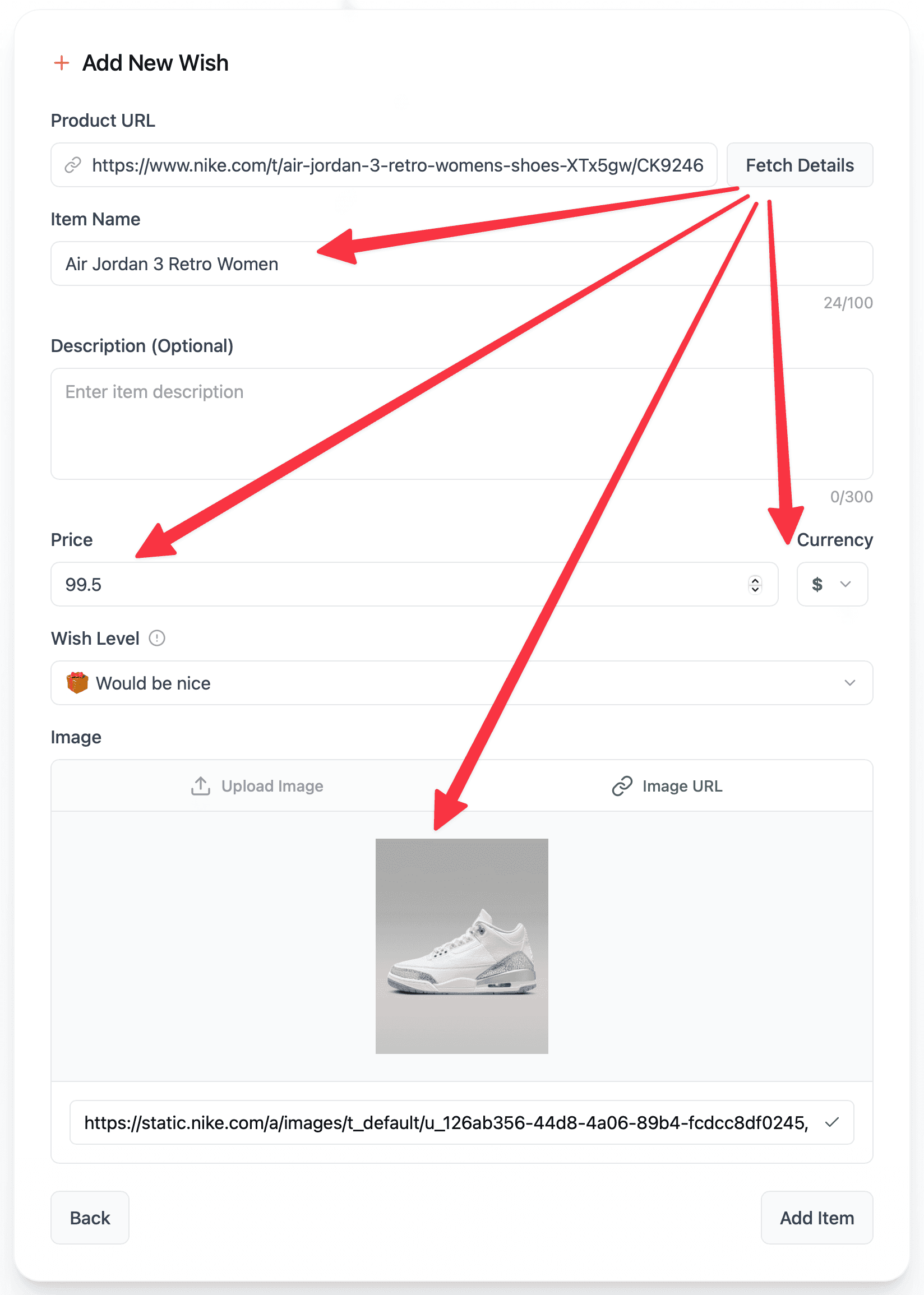
When you paste a URL, you can click on "Fetch Details", we automatically pull the title, price, and images from the website. (Some websites may not allow metadata to be pulled. And you have to manually add the item's details.)
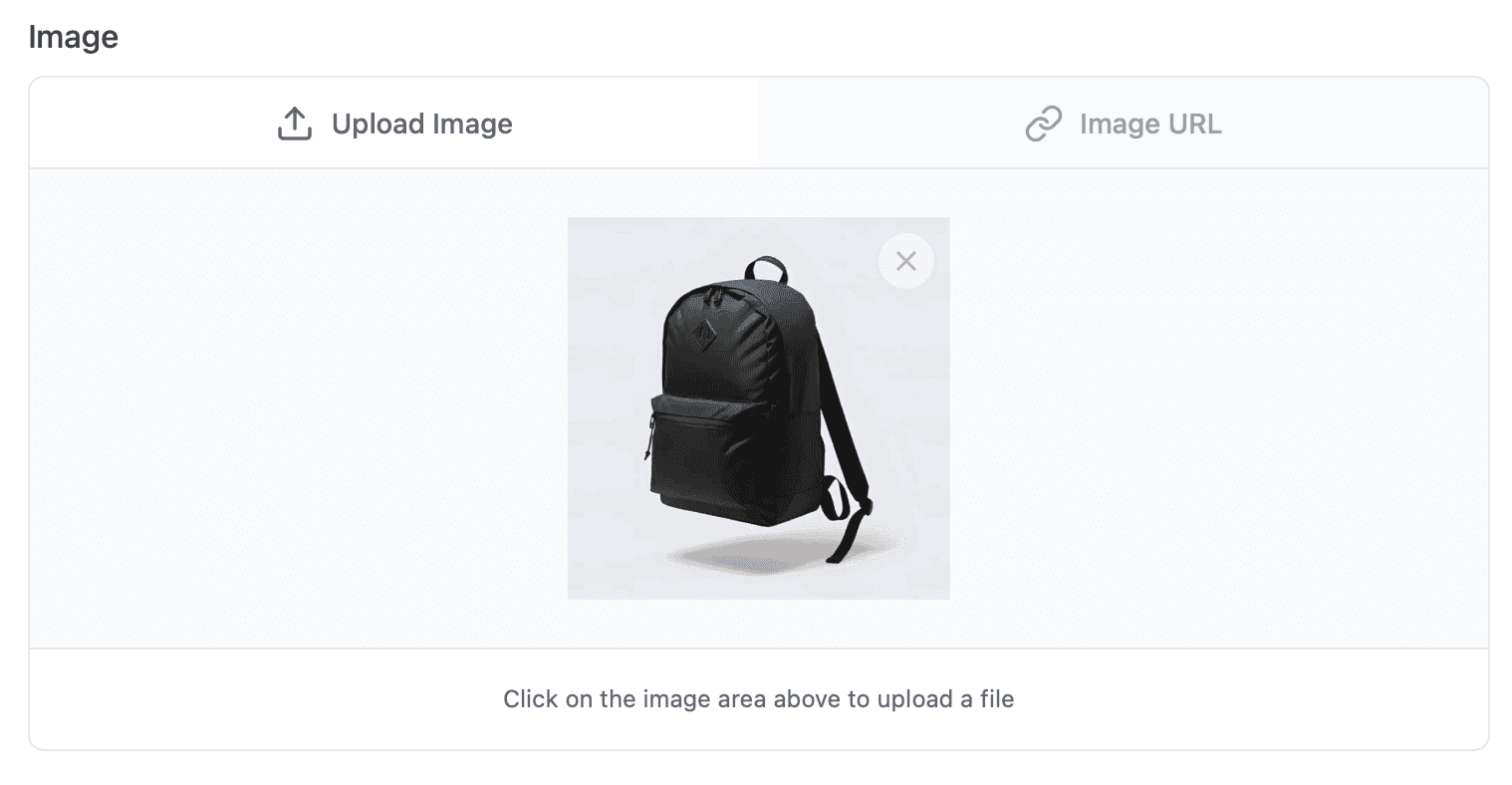
You can also upload your own custom image to better represent the item.
Creating a Wishlist
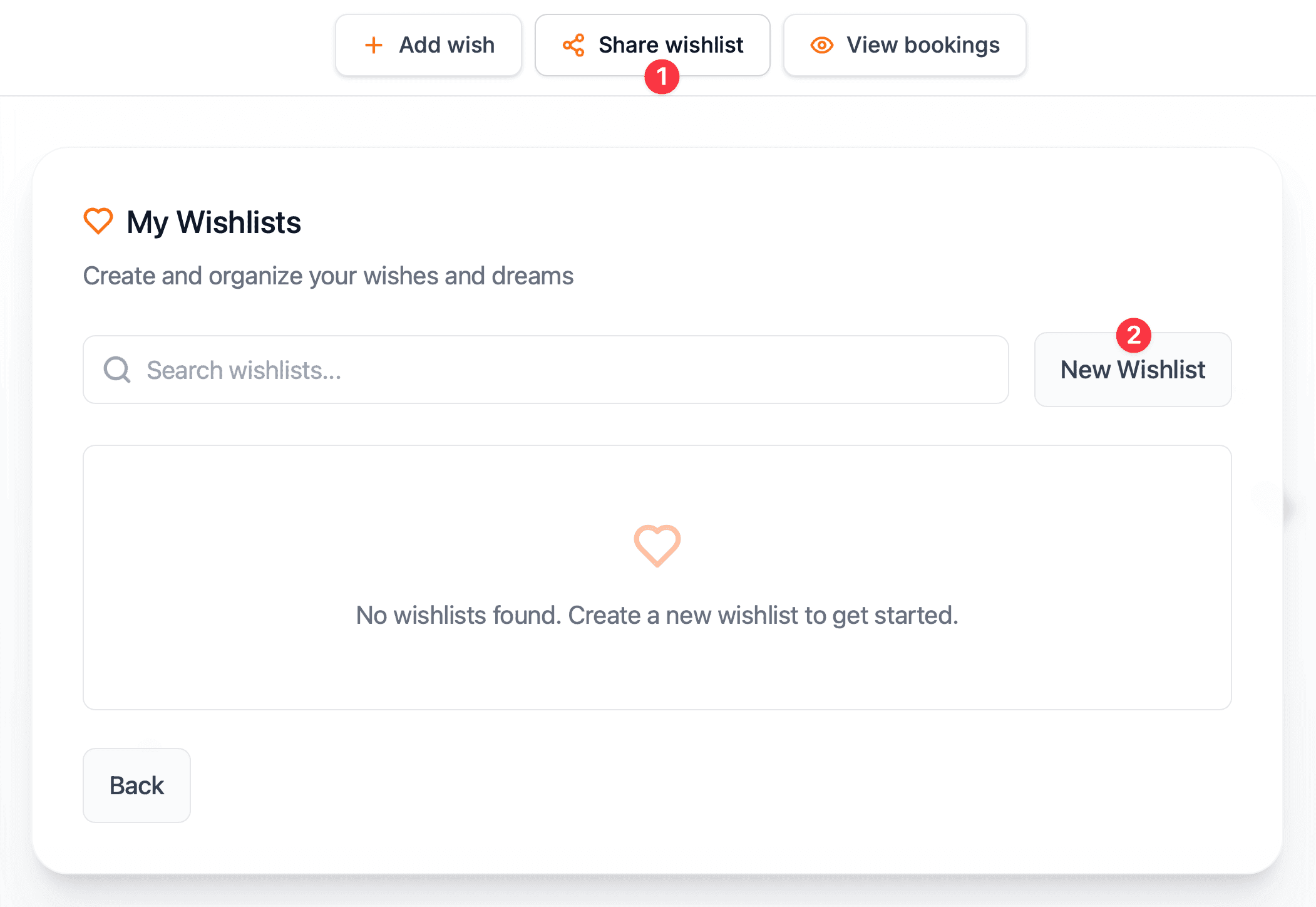
Navigate to your dashboard page and click the "Create Wishlist" button to start a new collection of wishes.
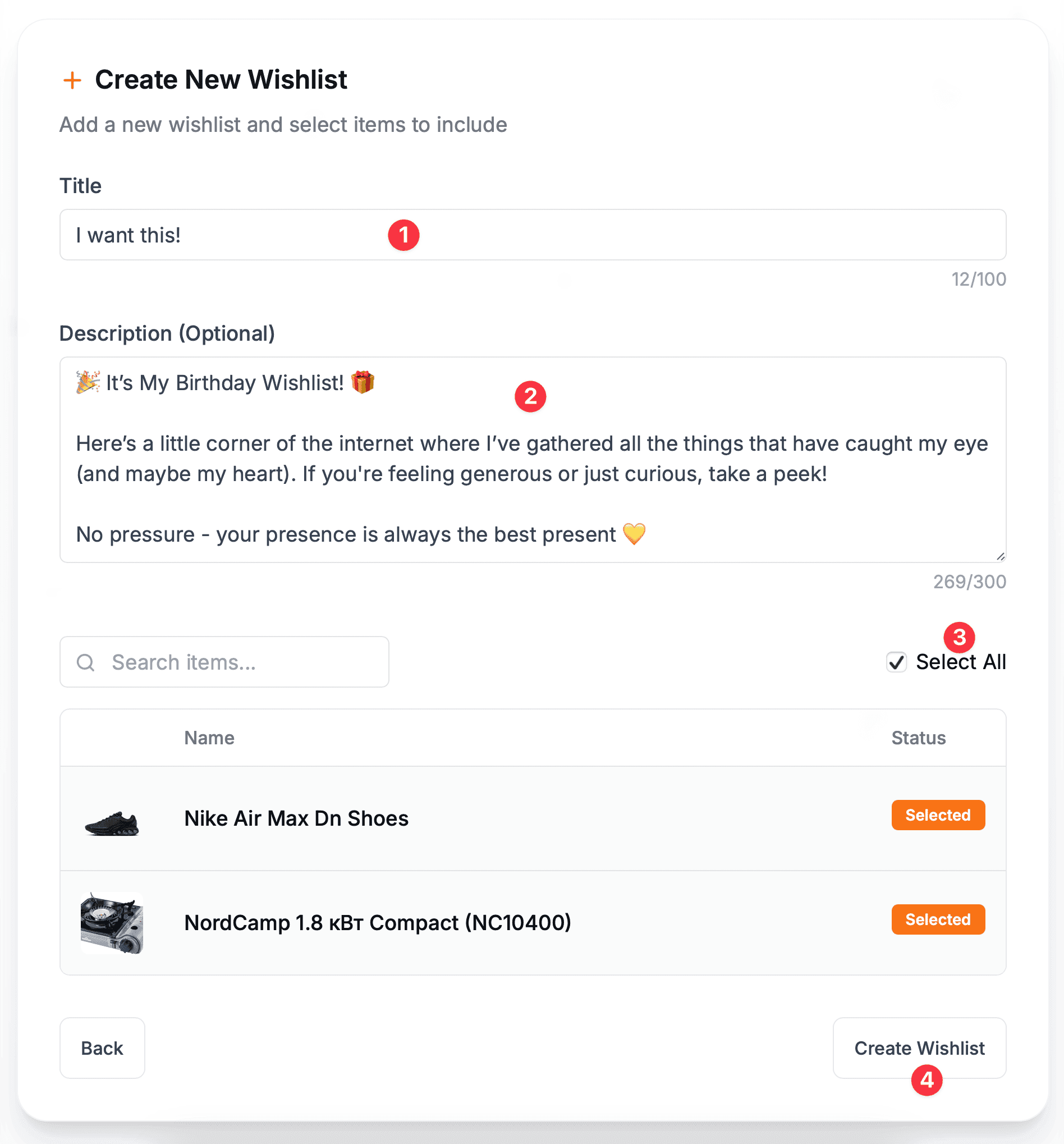
Write a title for your wishlist and description using Markdown formatting to personalize your list.
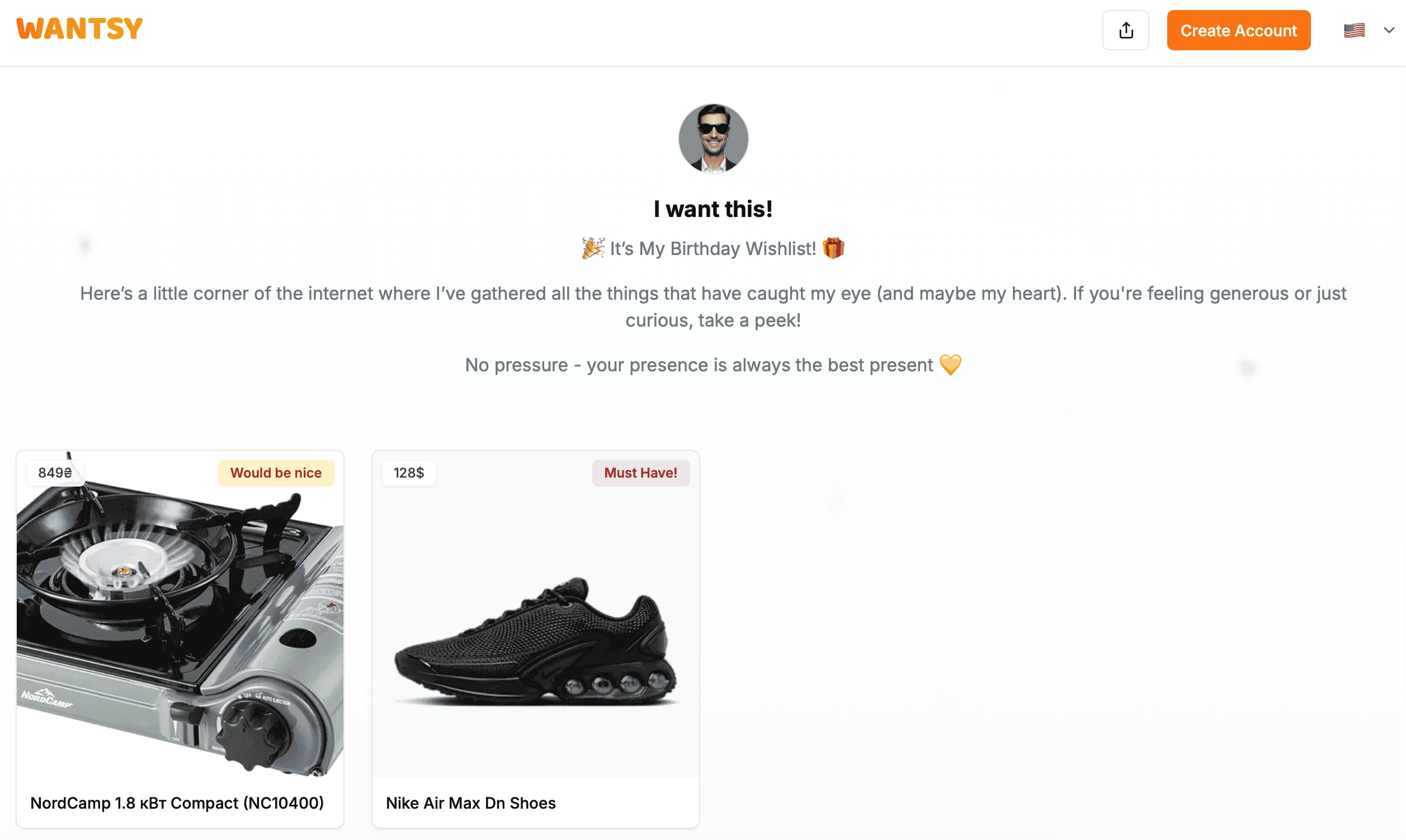
Open the wishlist page and share it with your friends.
Setting a Deadline
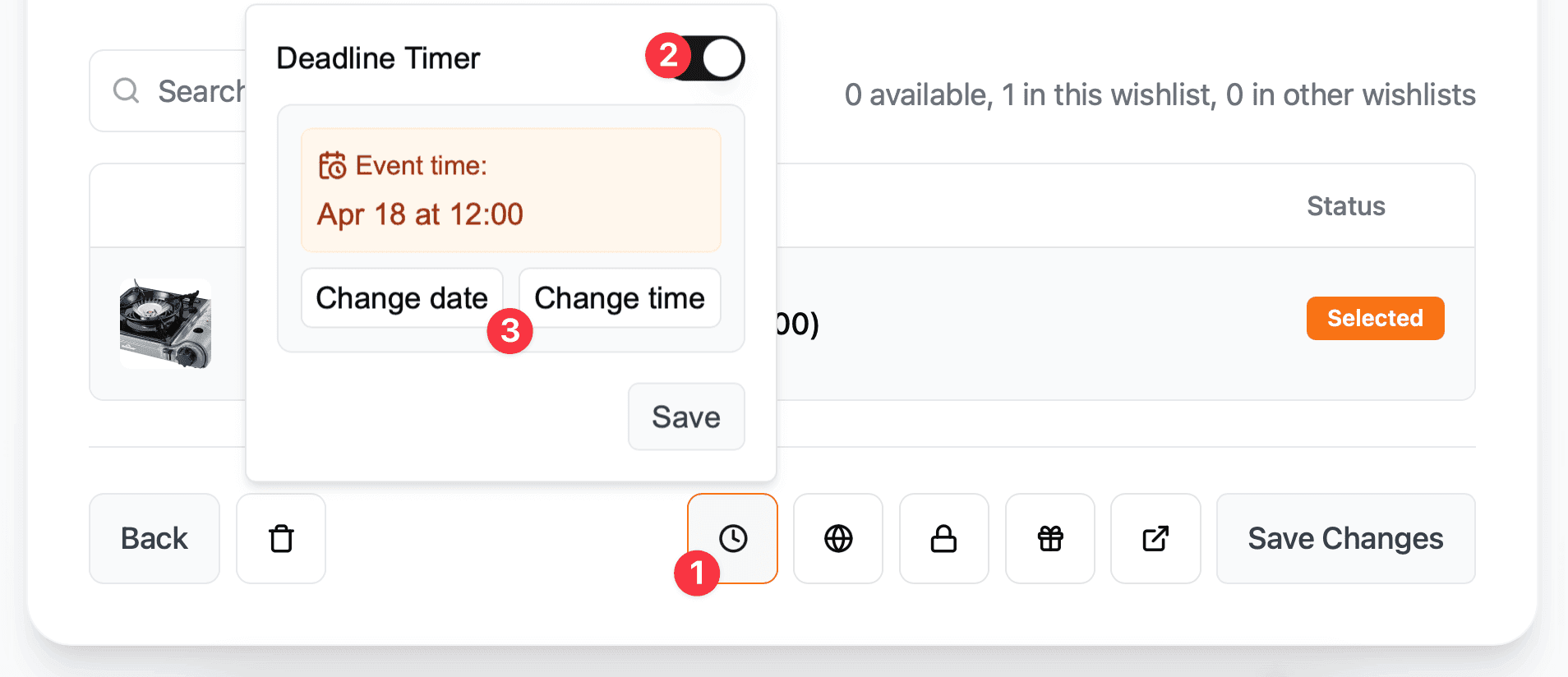
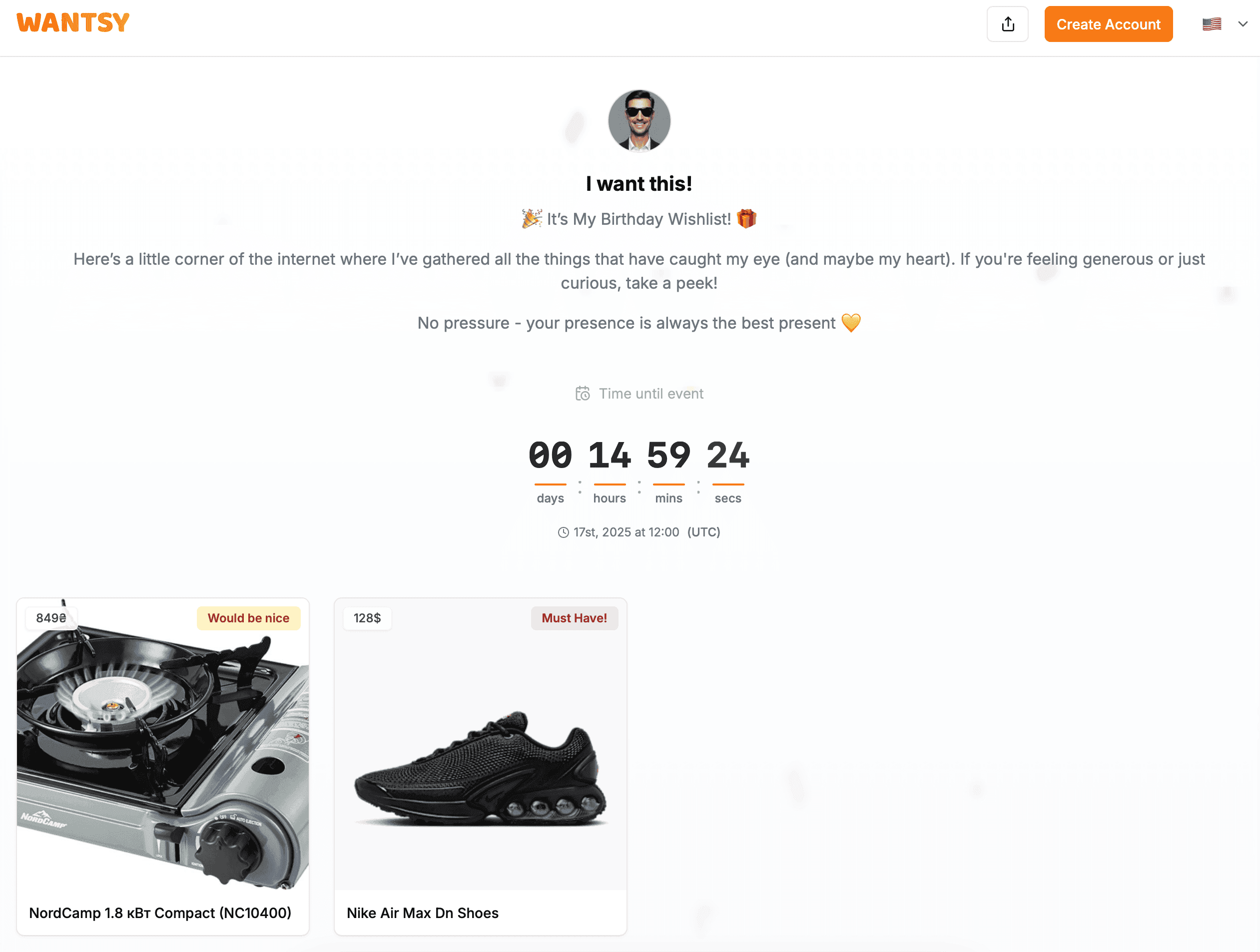
Add a deadline to your wishlist to let others know when you need the items by, perfect for birthdays or special events. Just open your wishlist and click on the "Set Deadline" button.
Open the wishlist page and share it with your friends.
Creating a Custom Link
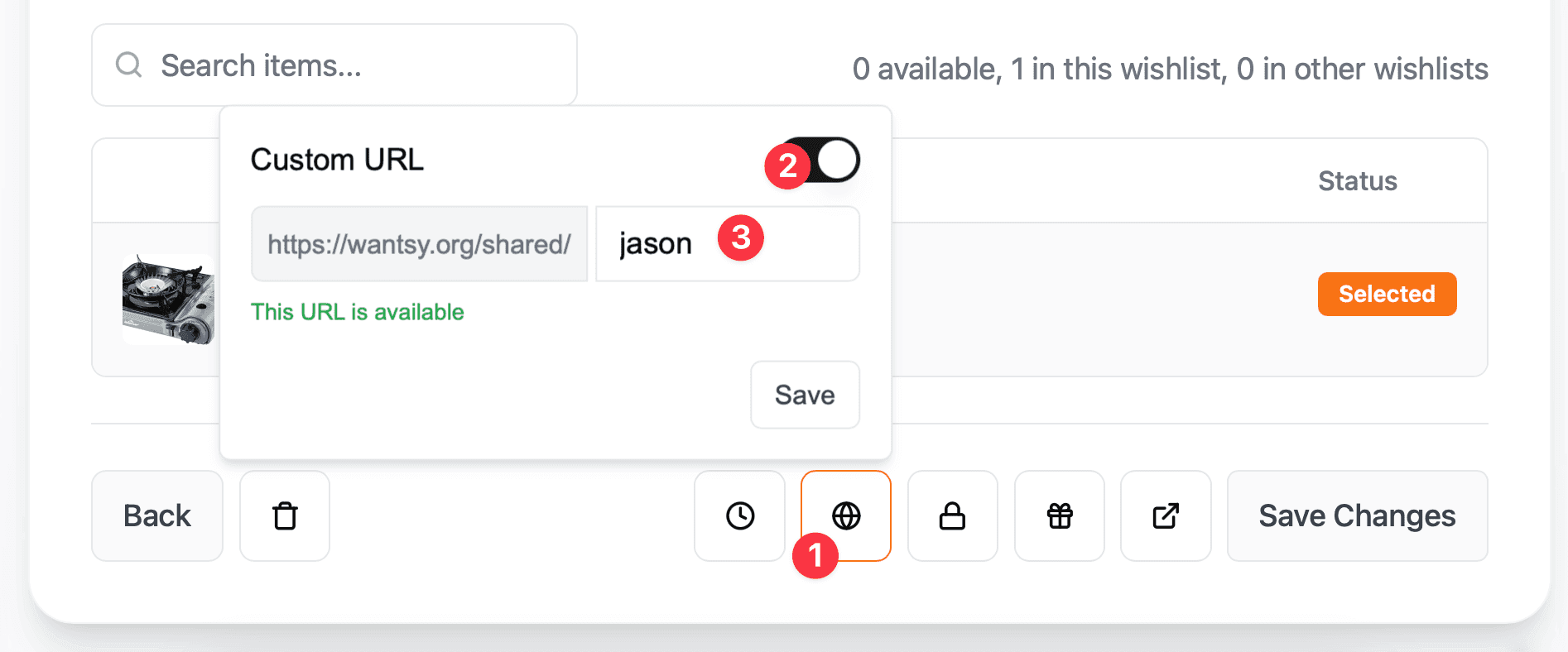
Personalize your wishlist URL by creating a custom link that's easier to remember and share. Just open your wishlist and click on the "Custom Link" button.
Setting a PIN Code
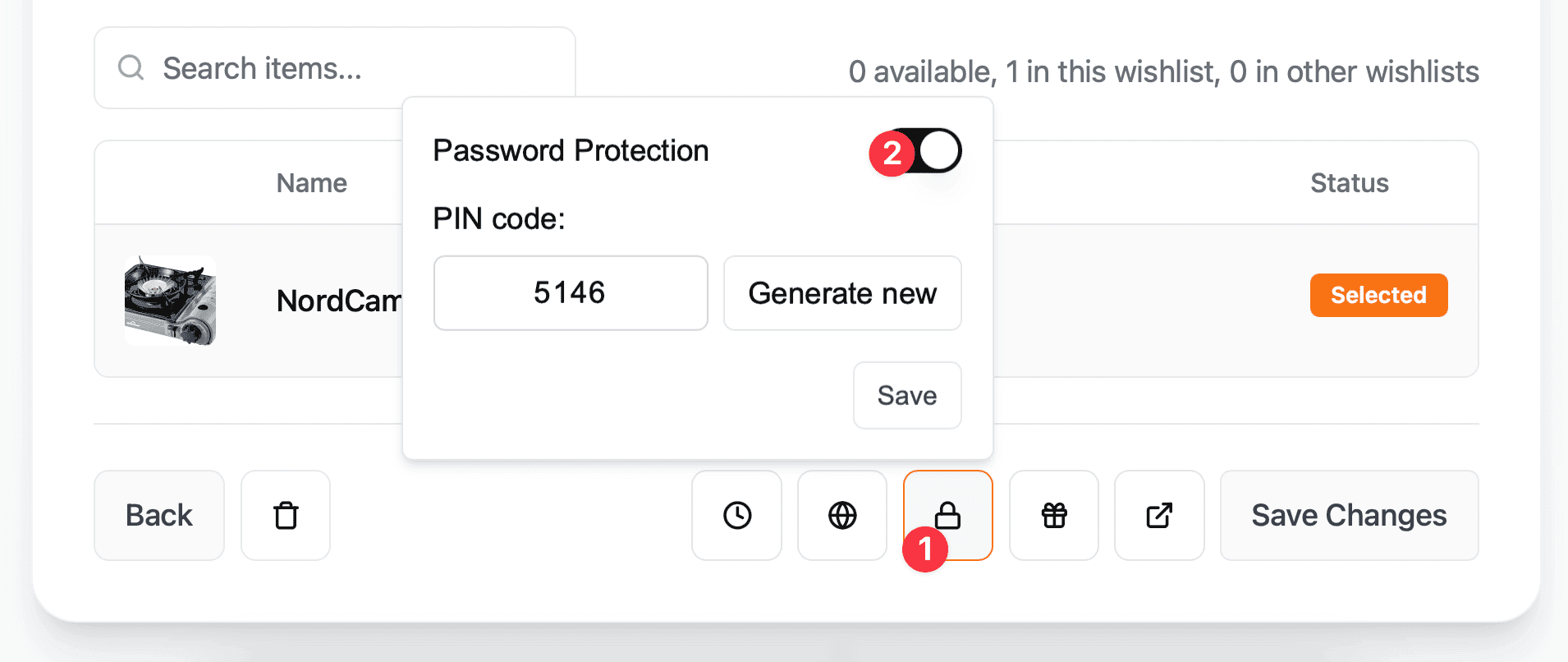
Protect your wishlist with a PIN code to control who can view your wishes. Just open your wishlist and click on the "PIN Code" button.
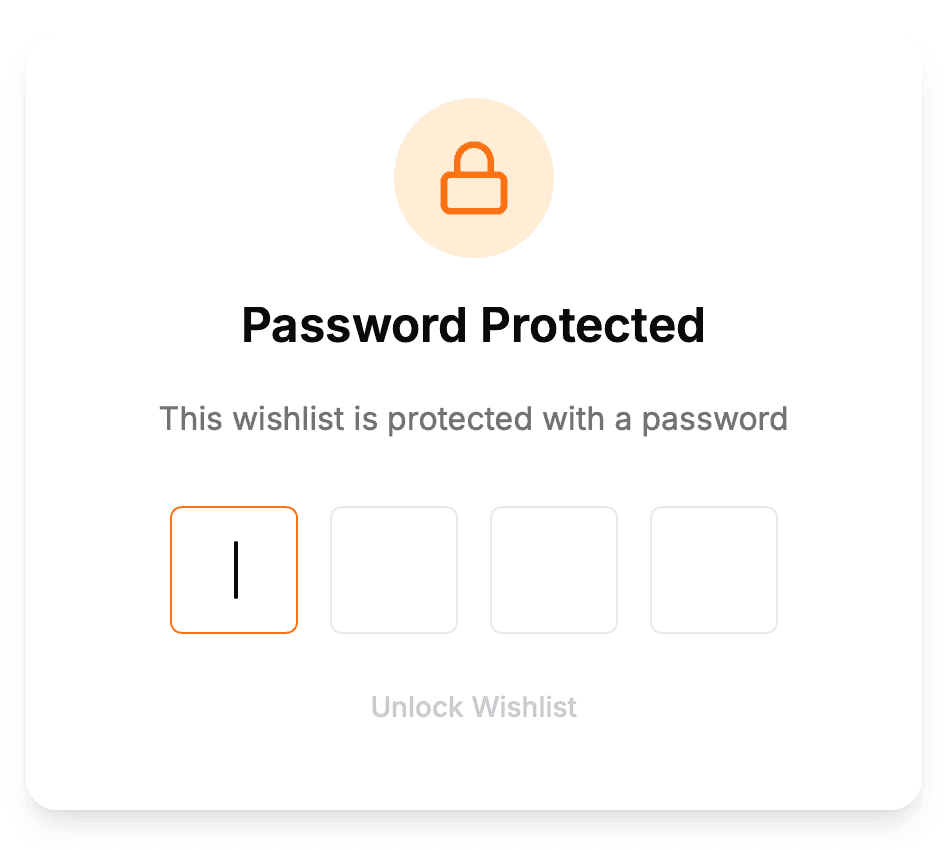
Open the wishlist page and share it with your friends. Don't forget to tell them the PIN code.
Enabling Reservations
You can enable reservations on your wishlist to allow others to reserve items. Just open your wishlist and click on the "Reservations" button.
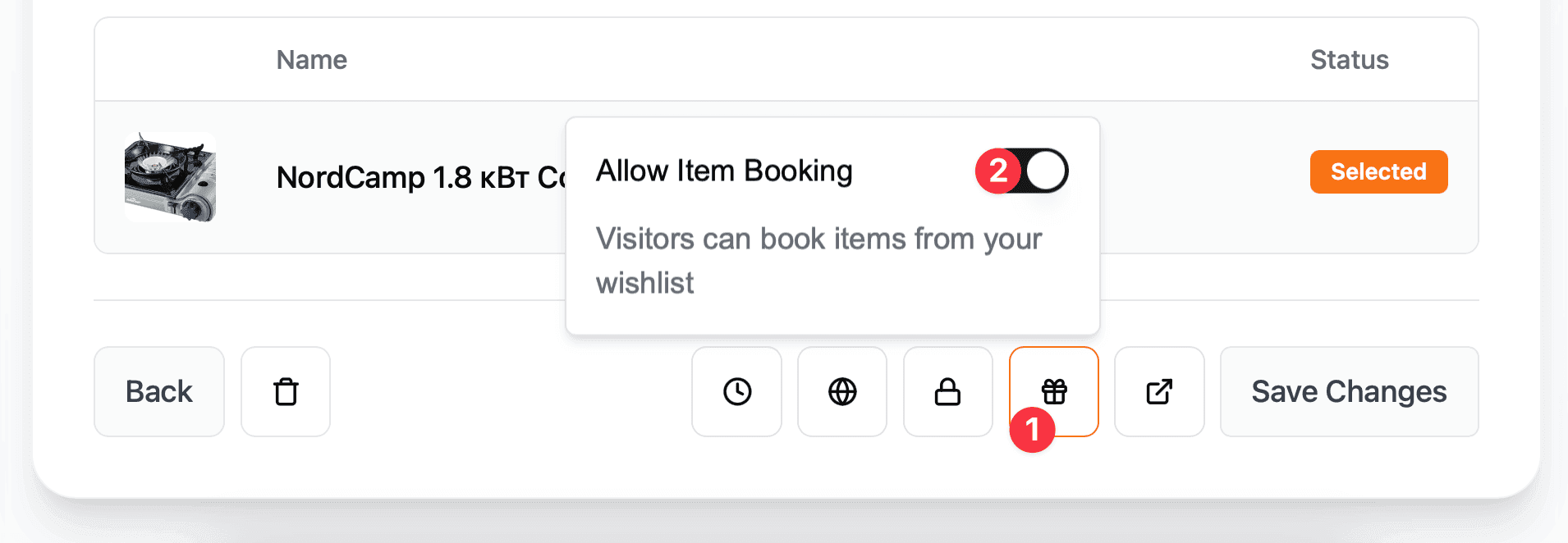
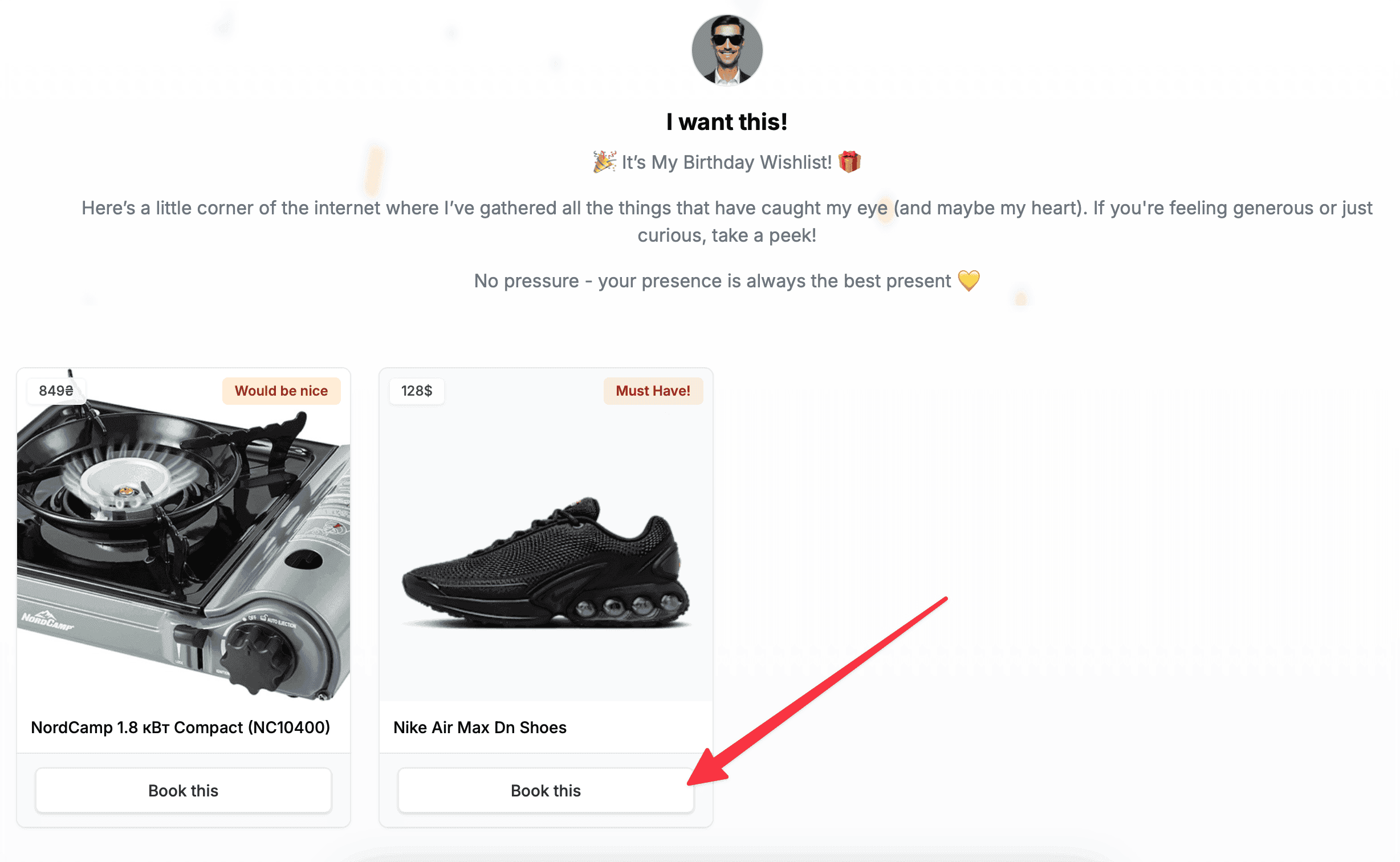
Your friends can now reserve items from your wishlist. They can also see the items that are reserved and the status of the reservation.
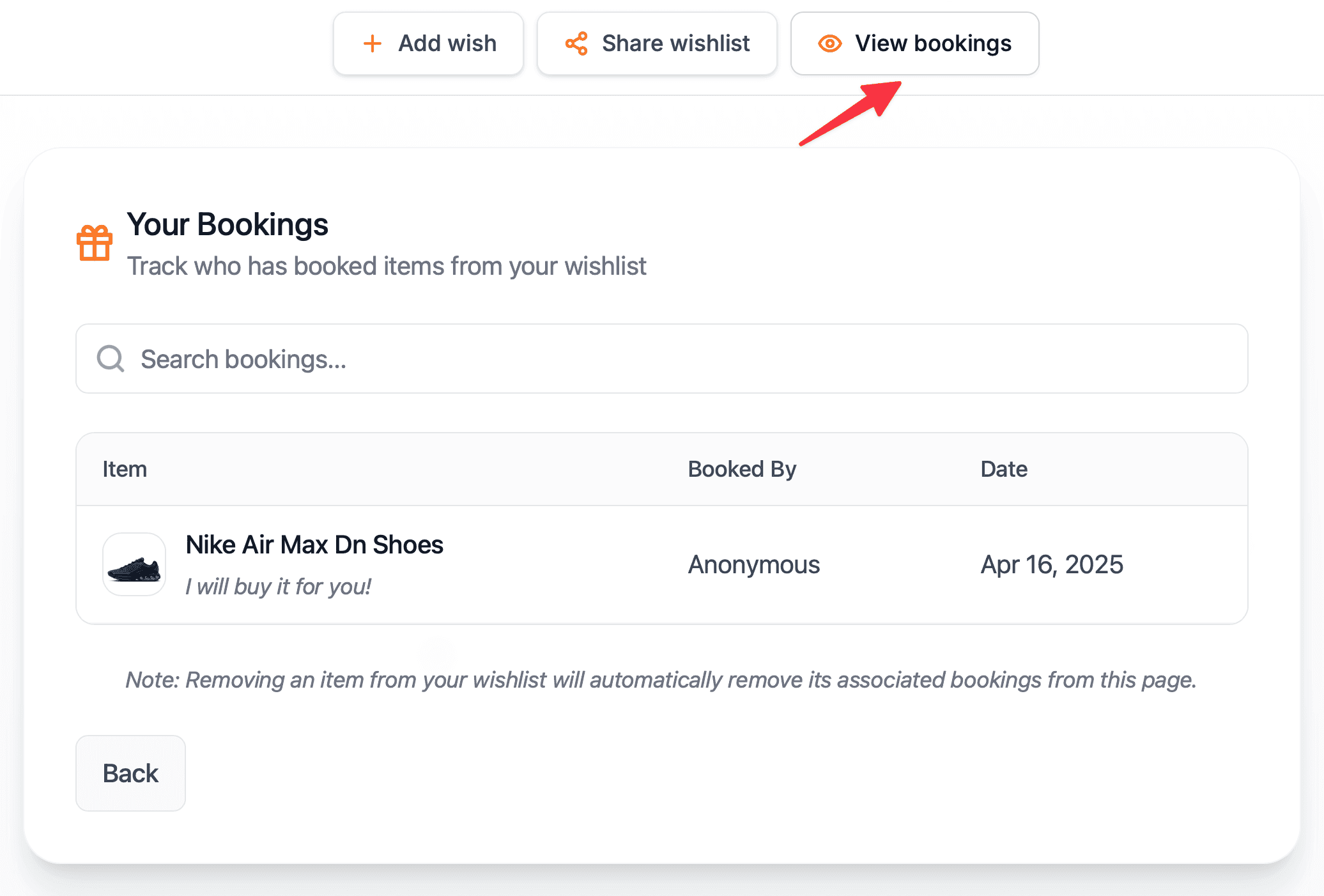
Viewing Reservations
Find and manage all reservations made on your wishlist items in the reservations dashboard.
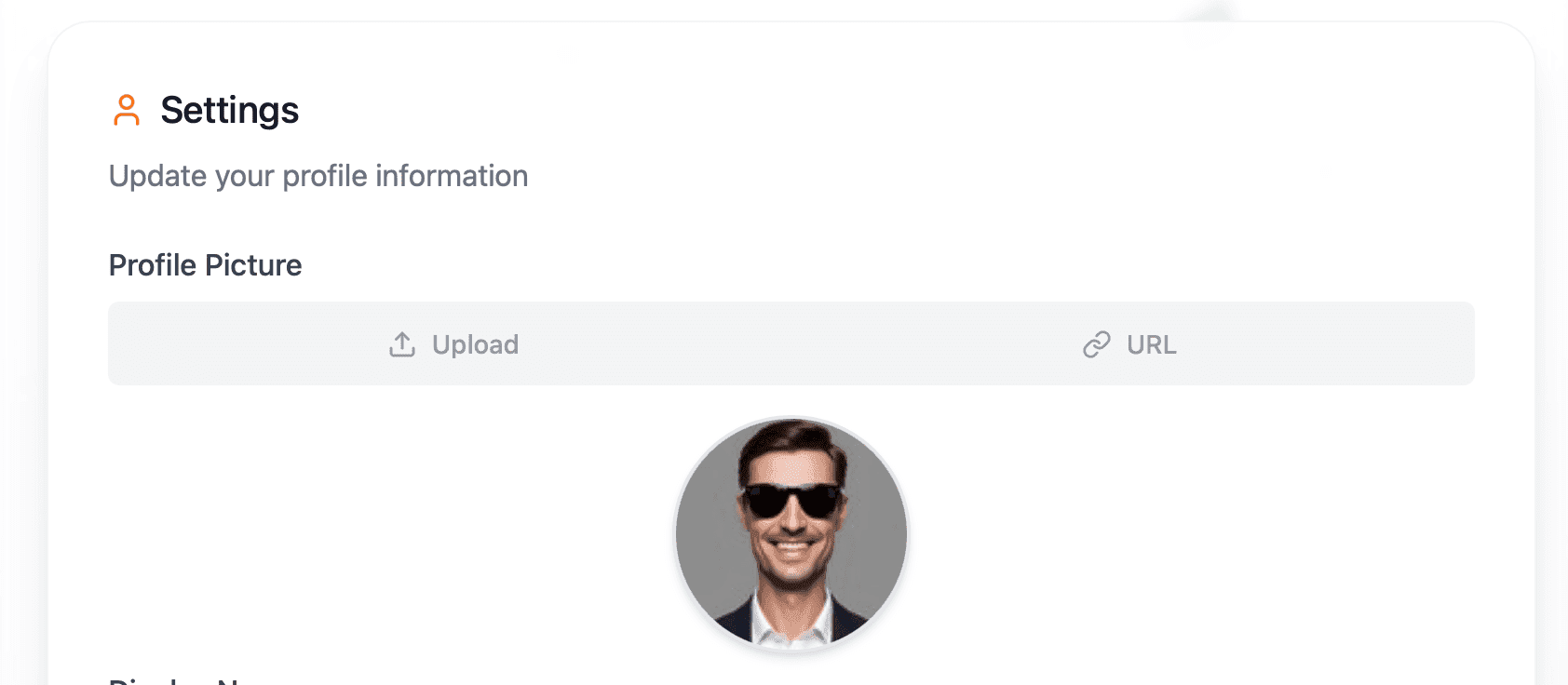
Uploading an Avatar
Personalize your profile by uploading a custom avatar image to represent you on the wishlist page.